> ## Documentation Index
> Fetch the complete documentation index at: https://help.mosh.jp/llms.txt
> Use this file to discover all available pages before exploring further.
# ダッシュボードを確認する
> 会員のコンテンツ閲覧完了状況・会員数・平均完了率をダッシュボードで確認する方法
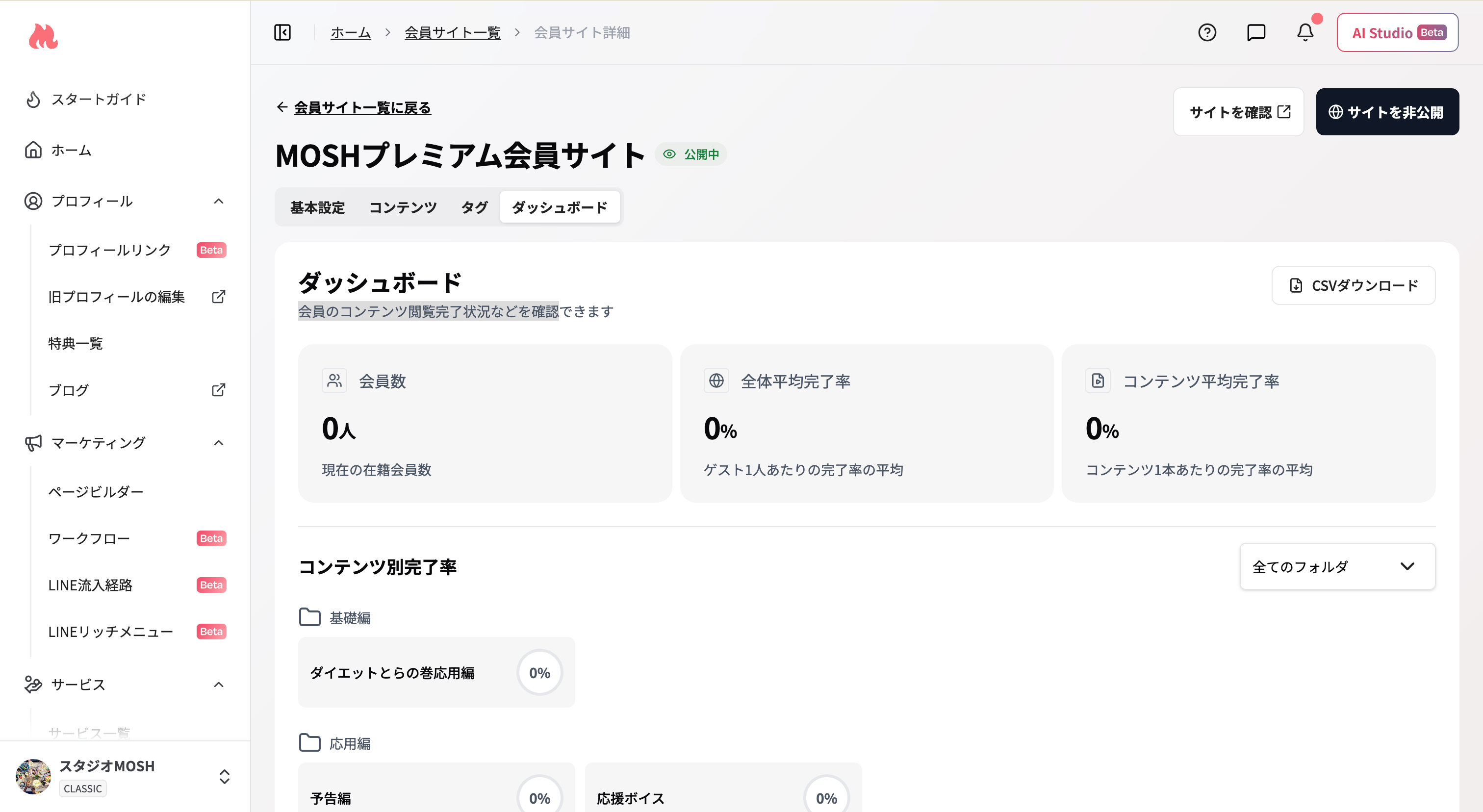
会員サイトのダッシュボードでは、会員のコンテンツ閲覧完了状況・会員数・平均完了率を確認できます。
 **アクセス経路**
[会員サイト一覧](https://mosh.jp/creator/membership-sites?openExternalBrowser=1) → 該当の会員サイト → 「ダッシュボード」タブ
***
## ダッシュボードを開く
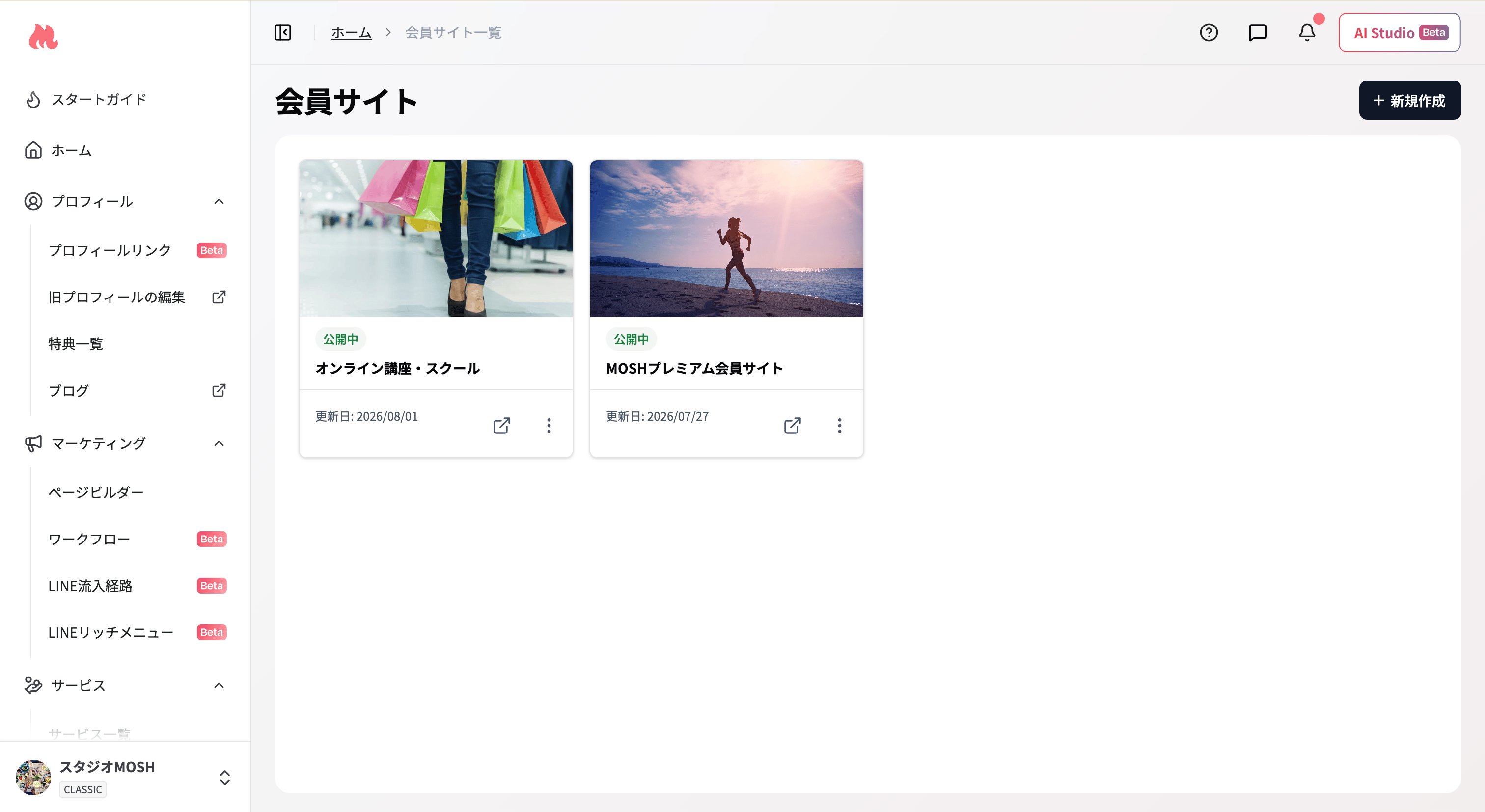
[会員サイト一覧](https://mosh.jp/creator/membership-sites?openExternalBrowser=1) を開きます。
**アクセス経路**
[会員サイト一覧](https://mosh.jp/creator/membership-sites?openExternalBrowser=1) → 該当の会員サイト → 「ダッシュボード」タブ
***
## ダッシュボードを開く
[会員サイト一覧](https://mosh.jp/creator/membership-sites?openExternalBrowser=1) を開きます。
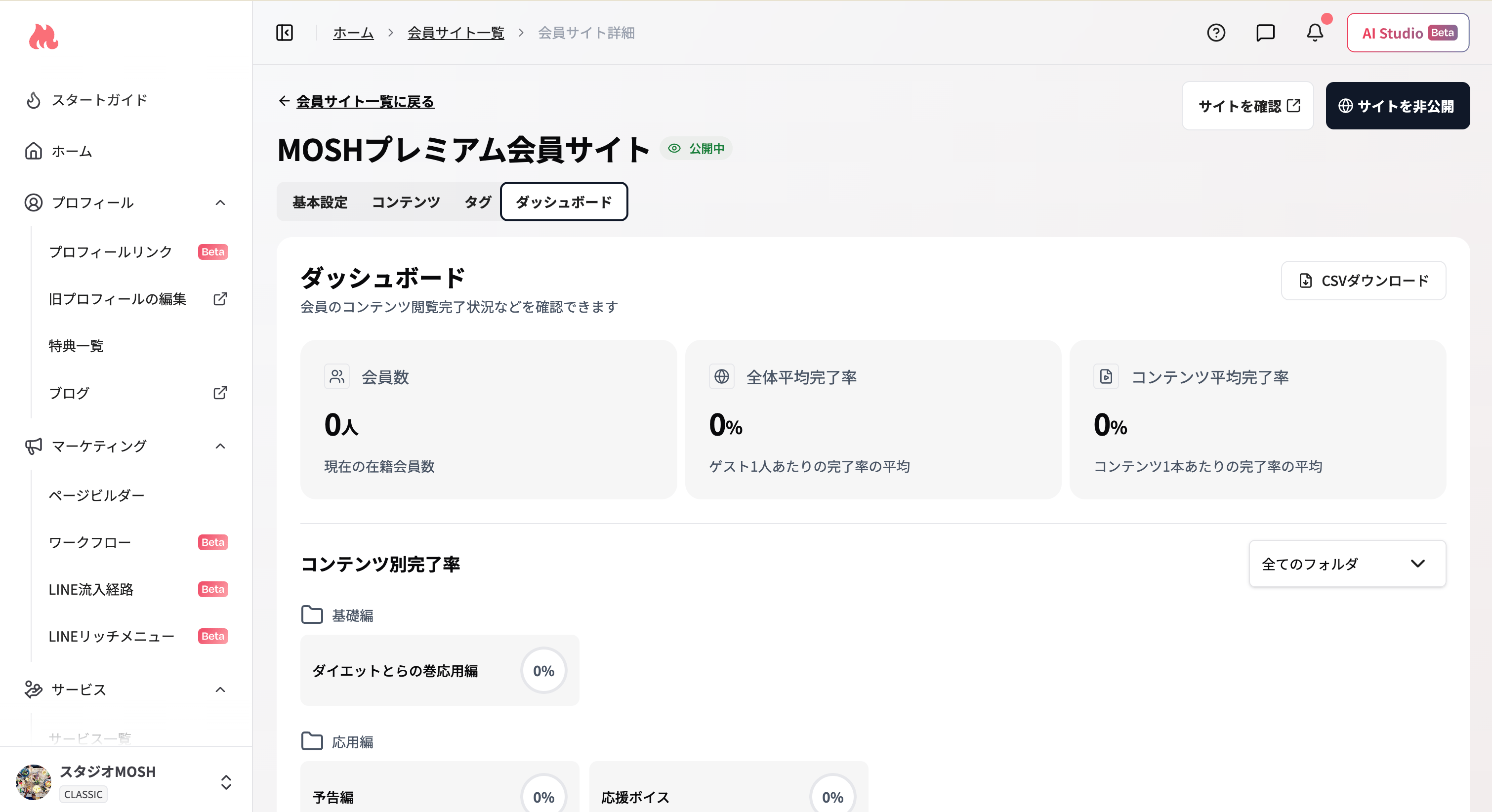
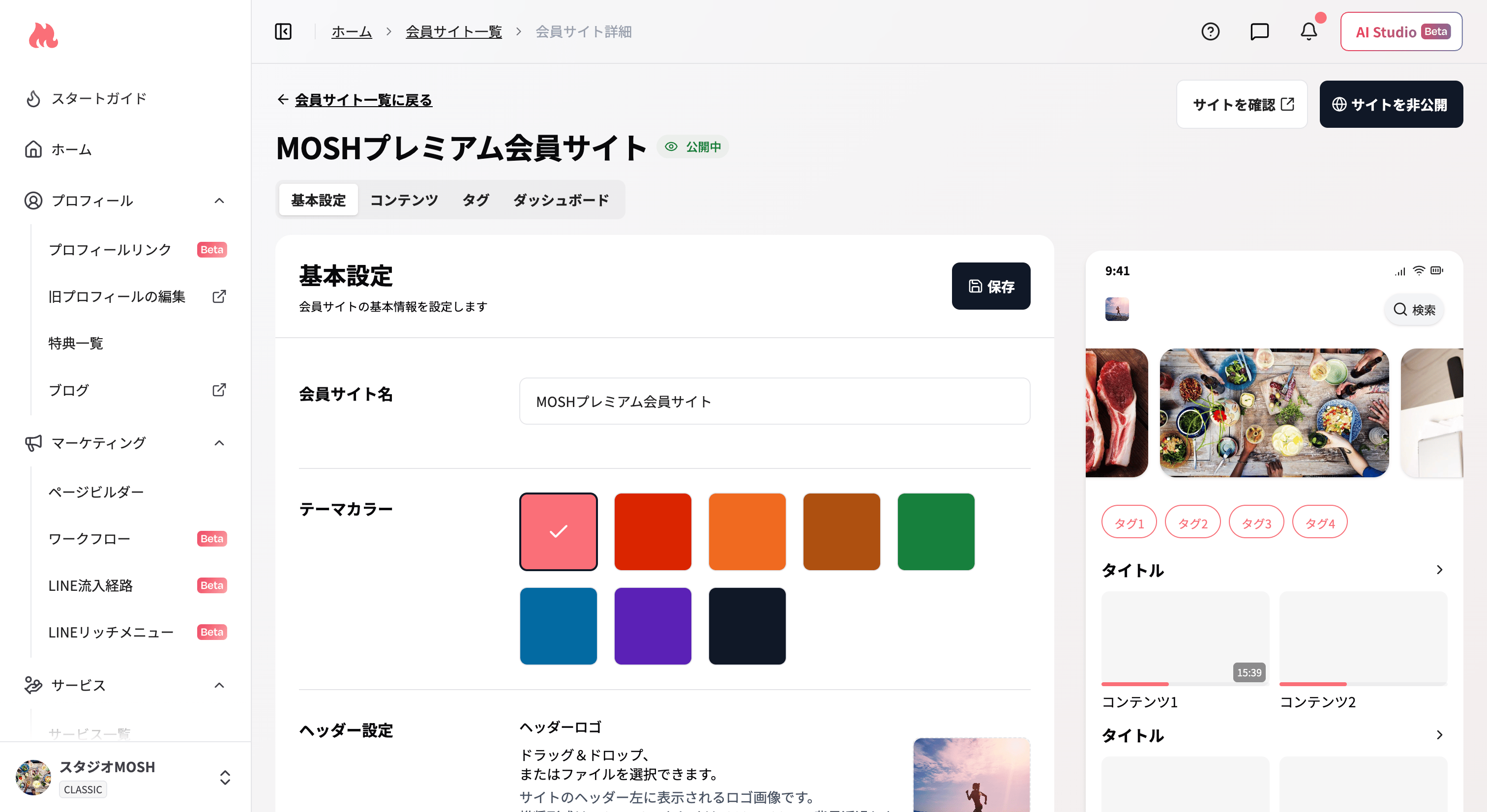 会員サイト詳細画面上部の「基本設定」「コンテンツ」「タグ」「ダッシュボード」のタブから「ダッシュボード」をクリックします。
 ***
## 確認できる指標
ダッシュボード上部に以下の3つの指標が表示されます。
| 指標 | 説明 |
| -------------- | --------------------------------------- |
| **会員数** | 現在の在籍会員数(有効なライセンスを持つアクティブ会員数) |
| **全体平均完了率** | ゲスト1人あたりの完了コンテンツ数 ÷ 閲覧権限のあるコンテンツ数の平均(%) |
| **コンテンツ平均完了率** | コンテンツ1本あたりの(完了ゲスト数 ÷ 対象ゲスト数)の平均(%) |
「完了」の定義は動画の再生完了ではなく、**「閲覧完了ボタン」のタップ**です。閲覧完了ボタンの表示設定は各コンテンツの編集画面から変更できます。なお、視聴回数・再生回数は現時点では確認できません。
***
## コンテンツ別完了率を確認する
ダッシュボード下部の「コンテンツ別完了率」セクションで、フォルダごとに各コンテンツの完了率を確認できます。
* フォルダのドロップダウンから特定のフォルダに絞り込んで表示できます
***
## 確認できる指標
ダッシュボード上部に以下の3つの指標が表示されます。
| 指標 | 説明 |
| -------------- | --------------------------------------- |
| **会員数** | 現在の在籍会員数(有効なライセンスを持つアクティブ会員数) |
| **全体平均完了率** | ゲスト1人あたりの完了コンテンツ数 ÷ 閲覧権限のあるコンテンツ数の平均(%) |
| **コンテンツ平均完了率** | コンテンツ1本あたりの(完了ゲスト数 ÷ 対象ゲスト数)の平均(%) |
「完了」の定義は動画の再生完了ではなく、**「閲覧完了ボタン」のタップ**です。閲覧完了ボタンの表示設定は各コンテンツの編集画面から変更できます。なお、視聴回数・再生回数は現時点では確認できません。
***
## コンテンツ別完了率を確認する
ダッシュボード下部の「コンテンツ別完了率」セクションで、フォルダごとに各コンテンツの完了率を確認できます。
* フォルダのドロップダウンから特定のフォルダに絞り込んで表示できます
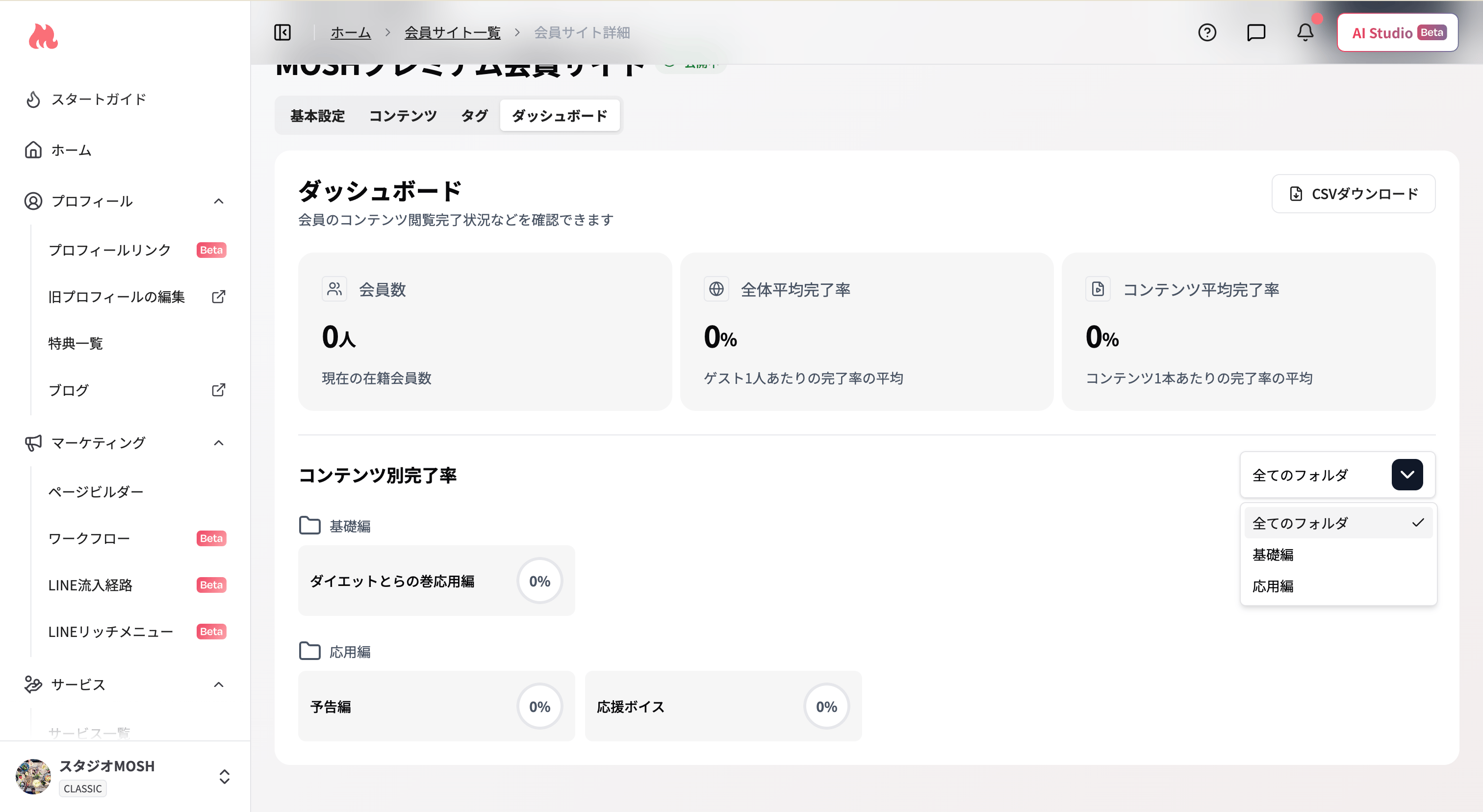 * 各コンテンツに完了率(%)が表示されます
CSVのダウンロード方法・内容の詳細は[コンテンツ閲覧完了状況のCSVをダウンロードする](/creator/member-site-v2/dashboard-csv)をご覧ください。
* 各コンテンツに完了率(%)が表示されます
CSVのダウンロード方法・内容の詳細は[コンテンツ閲覧完了状況のCSVをダウンロードする](/creator/member-site-v2/dashboard-csv)をご覧ください。